Virtual Staging With Claude and Higgsfield: How I Stage a Whole Listing Folder

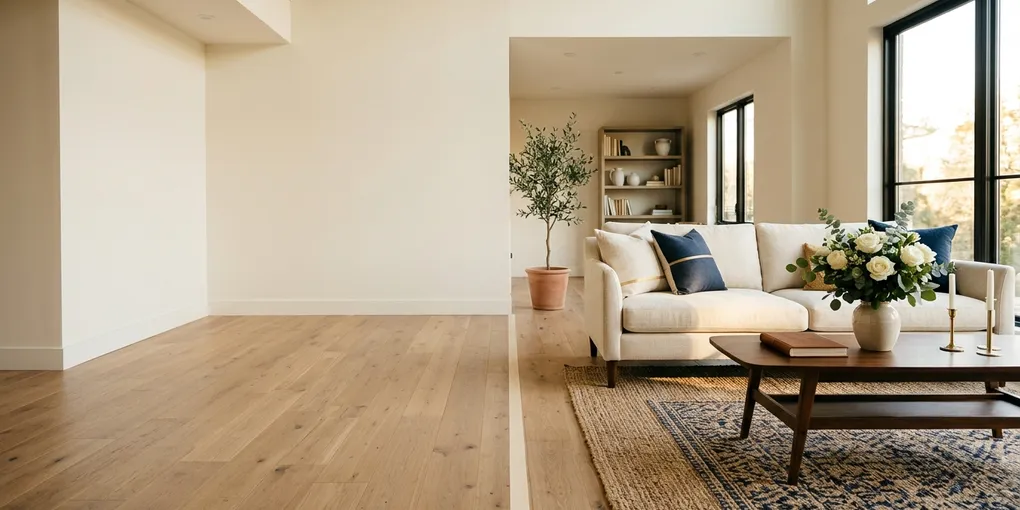
Staging a listing the old way means hauling furniture or paying someone to do it. I wanted to see what an empty room could look like furnished before I put a listing live, so I tried virtual staging with Claude instead.
I’m William Zhang, a practicing real estate agent in Austin. What I ended up with is a Claude project that stages a whole folder of listing photos for me, labels each one as virtually staged, and then turns the photos into a listing website. Below is how I set it up, which image model I’d use, and where the AI still gets it wrong.
One thing up front: the video this post is based on was sponsored by Higgsfield, and the Higgsfield links in this post are affiliate links. Everything I show here is what I did on my own listing photos.
How I Set Up the Claude Seller Assistant
The first step is a Claude project. In Claude Desktop I click Projects, then create a new project, and give it a short description so I remember what it’s for. Mine helps with virtual staging and listing marketing.
I named mine Smithy. I’d name yours something human too. It’s easier to treat it like a teammate when it has a name.
Then I add project instructions. Project instructions are a block of written rules that Claude follows every time you chat inside that project. Mine are short:
- Never invent a fact about price, status or square footage.
- Never give legal advice.
- Any pricing output is my opinion, not an appraisal.
- Fair housing rules apply.
- Drafts only. Nothing gets sent.
Those rules matter because the default answer from any AI is generic and a little too confident. With the rules in place, Smithy answers like a seller-side assistant that knows what it’s not allowed to do.
You can write your own version today. Open a new project, paste in the rules you’d give a new assistant on day one, and keep them to a page.
Virtual Staging on Higgsfield, One Photo at a Time
Before I automated anything, I staged photos by hand so I could see what the models do. I used Higgsfield, which puts the top image and video models in one place, including Nano Banana and GPT Image. I’ve used it for a few months and I like that I’m not signing up for each model separately. It’s also in my AI tools directory for agents.
Here’s the manual workflow:
- Open Higgsfield, go to image, and create a new image.
- Upload a photo from your photographer. I picked a good empty room.
- Choose the model. I ran Nano Banana first.
- Set the aspect ratio. I used 16:9, though auto works too.
- Pick 1K resolution. It’s plenty.
- Generate two photos at a time.
- Paste in your virtual staging prompt and hit generate.
A staging prompt is just written instructions for the model: keep the walls, floors, windows and fixtures exactly as they are, and only add furniture and decor in a modern style. Write yours around what you want preserved, because that’s where the mistakes happen.
Then I ran the same photo through the other model and compared.
Nano Banana vs GPT Image for Virtual Staging
My test room had a black couch, LED lights, a ceiling fan and a TV. Here’s what came back.
Nano Banana, first result. Solid. It didn’t change the room, and the furniture looked very modern. This is what I like about it.
Nano Banana, second result. It made a mistake. The counter changed a little. Easy to miss if you’re skimming.
GPT Image. At first glance it looked the best of the three. It added a small vase with flowers, and it removed a painting from the wall. I liked it a lot.
So the short answer on Nano Banana vs GPT Image for virtual staging: I’d start with GPT Image for keeping the original room accurate, and I’d still review everything. Two photos at a time means you get a second shot at each room, which is the whole reason to generate more than one.
The thing to take from this isn’t which model won. It’s that any model can quietly change a counter, an island or a window. Put the original and the staged photo side by side every time.
Automating the Folder With a Claude Skill
Doing one photo at a time gets old fast. So I built a skill to do the whole folder.
A skill is a file of written rules that Claude follows for one specific job. The skill I use tells Claude how to stage a room, which model to call, what to preserve, and how to label the result. You upload it in Claude’s settings under skills, and then you can call it by name in any chat.
To build your own, write down what you’d tell a person doing this job: what to keep, what to add, what style, what to label, and where to save the files. That’s a skill. The default model in mine is Nano Banana, so if you decide GPT Image keeps more of your room intact, change the model in the skill.
How I Connect the Higgsfield MCP to Claude
The skill needs a way to reach the image models. That’s the Higgsfield MCP Claude connection, and it’s a custom connector. Setup is short:
- In Claude Desktop, click Connectors on the left side.
- Click add custom connector and name it Higgsfield MCP.
- In Higgsfield, click MCP, then Claude, and copy the server address.
- Paste the address into Claude and continue.
- Sign in to Higgsfield when it asks.
Once it’s connected, Claude can run the models for you. I drag my listing folder into the project, tell it to use the virtual staging skill, and approve the folder access. It stages the whole set and hands the photos back in a folder. In my test the staged bedroom was the best surprise. The original bed in that photo was the kind that makes a room look worse, and the staged version showed what the upstairs could be.
Label Every Staged Photo for the MLS
Here’s the part I won’t skip. My skill puts a small “virtually staged” note in the bottom right of every photo it produces.
I think it’s on us as professionals to disclose it. It’s about compliance, and it’s about not misleading anyone. I also like to show the empty photo and the staged photo together, so a buyer or renter can see both what’s there and what it could be. Your MLS will have its own rule on wording, so check it before you upload.
Turn the Staged Photos Into a Listing Website
Once the photos are staged, I use a second skill to build a listing website from them. A property website used to cost about $500. Now Claude builds it from the folder.
What it made for my listing:
- A hero drone shot, the address, price and a request-a-showing form that notifies me
- A by-the-numbers section with the school district and key facts
- Room-by-room photo galleries you can zoom into
- A before and after slider on the staged rooms
- A map of the area, so people can see what’s nearby
You can add a video tour or extra documents to the same page, which is better than the slide-show tools some portals give you. I wrote up the whole site build, step by step, in my listing website walkthrough.
I’d still check the site the same way I check the photos. In mine, the default model had changed an island, so I regenerated that photo. Mistakes like that will happen with AI, and that’s why a human stays in the loop.
Where This Fits in Your Listing Workflow
The staging is one part of a bigger seller assistant. If you want the earlier version of that build, here’s my first AI seller assistant setup in Claude. If you’d rather start with the no-cost staging options, I covered those in this staging comparison.
New to Claude? Start with Claude AI for real estate agents, the beginner guide, then come back and build the project.
If you want a new Claude workflow for agents every week, join the newsletter.
Frequently asked questions
Questions agents actually ask me about this, answered.
Do you have to disclose virtually staged photos?
Yes, I do it every time. The photos I get back from my staging skill carry a small 'virtually staged' label in the bottom right corner. I also show the empty original next to the staged version so nobody is misled about what the room looks like today. Check your MLS rules for the exact wording they want.
How do you do virtual staging with Claude?
Claude doesn't generate the furniture itself. It runs an image model for you. I connect the Higgsfield MCP to Claude as a custom connector, drop a folder of listing photos into a Claude project, and tell a virtual staging skill to stage the rooms. Claude sends each photo to the image model and hands the staged versions back in a folder.
Which is better for virtual staging, Nano Banana or GPT Image?
In my test, GPT Image kept the original room closest to the real photo. Nano Banana gave very modern furniture, but one of its two results changed the kitchen counter. Run both on the same photo, then compare each result to the original before you use either.
How do you connect the Higgsfield MCP to Claude?
In Claude Desktop, open Connectors and choose add custom connector. Name it Higgsfield MCP, then in Higgsfield pick MCP, then Claude, and copy the server address. Paste that address into Claude, continue, and sign in to Higgsfield when it asks.
Can AI virtual staging get things wrong?
It can. In my test, one result changed the shape of a kitchen island and another changed a counter. That's why I review every staged photo against the original and regenerate any that drift. A human has to stay in the loop.

Liked this article? Get more like it.
Real AI experiments, practical tutorials, and workflows you can use the same day. Free, unsubscribe anytime.